Switch agents mid-chat
Hand a running conversation to a different agent without starting a new chat.
Sometimes the agent you started with is not the right one any more. Another agent may have a stronger model, or a tool this one lacks. You can switch agents inside the same chat. The new agent gets a summary of the conversation so far, and you keep the same tab and history.
Switch to another agent
- In the chat, click the model button in the message box.
- Click the tab of the agent you want. The tabs below the search field show each agent's icon; hover over one to see its name. Agents that do not fit are behind the More agents tab (...). You can also type the agent's name in the search field. The agent's models appear in the list, with the line "Switches to agent on the next send".
- Click a model. The model button now shows an arrow and the new model's name. This means the switch is ready, but nothing has changed yet.
- Type your next message and send it.
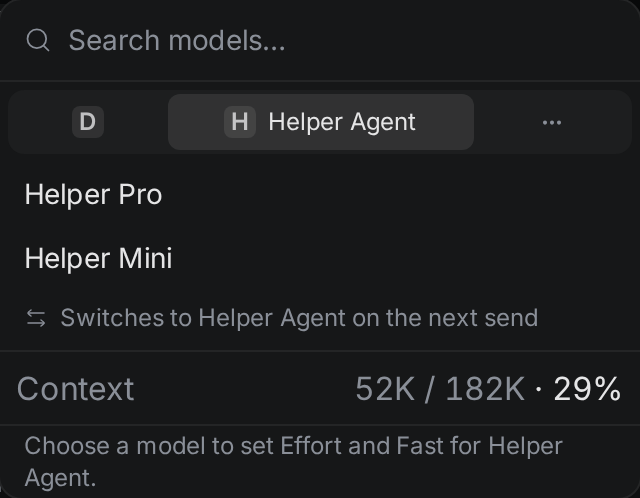
When you send, Troupe starts the new agent in the same folder. The new agent receives a summary of the conversation, followed by your message. Your message is all that shows in your chat bubble. The summary travels with it.
To change your mind before you send, click Cancel agent switch (the X next to the model button). You can also pick a model on the current agent's tab. The next message then goes to the current agent.
Switch an empty chat
If the chat has no messages yet, there is nothing to hand off. The agent's models show the line "Starts this chat on agent". Click a model, and the chat moves to that agent at once, in the same tab. The model button shows the new agent and model, with no arrow. No summary is sent, and no switch row appears.
Install an agent while you switch
If the agent you pick is not installed, the panel says so and shows an Install button. Click it. When the install finishes, the agent's models appear. Pick one to prepare the switch. The Install button is off while the chat is busy.
An agent marked Manual install, Needs Node, Needs uv, or Unavailable cannot be installed from here. Click it to read why. See Set up agents.
What you see after a switch
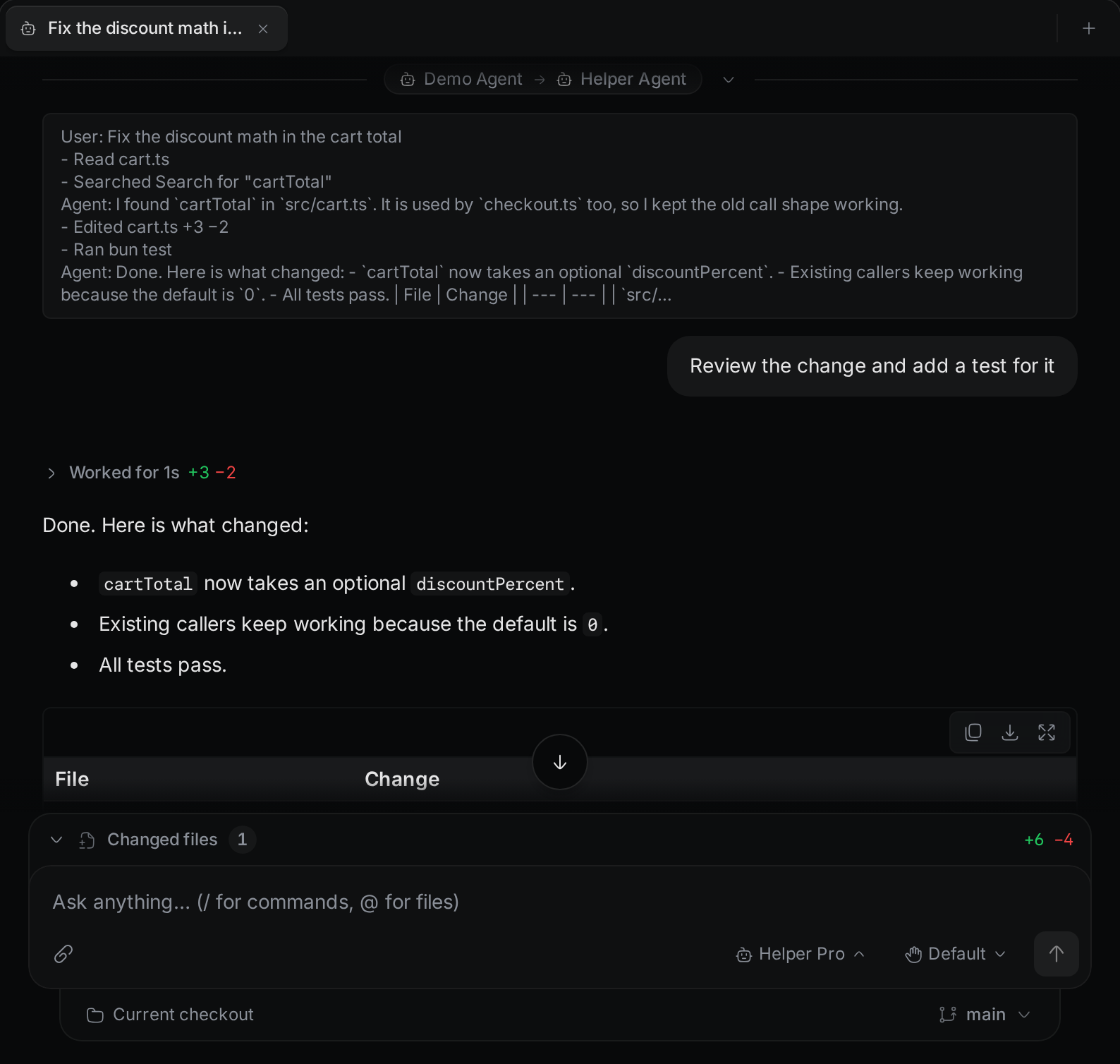
- The earlier messages stay at the top of the chat.
- A row with the old agent's icon and name, an arrow, and the new agent's icon and name marks the switch.
- The summary the new agent received sits under that row. Click the row to collapse or expand the summary. It is open again each time you reopen the chat.
- Your message and the new agent's replies follow.
The switch does not add a new chat. The sidebar keeps one row for the whole conversation, and so do the chat list on a phone and the chats you can @-mention. When you reopen the chat later, you see the whole conversation, from before and after each switch, and it continues with the last agent you switched to. If that agent cannot reload an old conversation, you can read the chat but not continue it, as described in Find and reopen chats. You can switch more than once.
When you @-mention a chat that switched agents, the agent you mention it to gets the turns from before and after each switch. Very long chats are still cut to their most recent part, and chats that do not fit in the combined limit for mentioned chats are sent without their text, as described in Mention a file or another chat.
Deleting the chat deletes the whole conversation, with every agent's part.
Switch while the agent is busy
You can switch only when the chat is free. If the agent is working when you pick a model on another agent's tab, the panel says the agent is working on a turn and offers two choices:
- Wait closes the panel and changes nothing. Try again when the turn ends.
- Cancel turn and switch stops the current turn, then prepares the switch.
If messages are queued, or an approval request or a question is waiting, only Wait is offered. The panel says "This chat is busy. Wait for the queued prompts or the open request to finish." Only Wait is offered too while the chat is starting or waiting for a sign-in.
If the switch fails
If the new agent cannot start, the chat stays with the original agent and shows "Could not switch agent" with the reason. You can keep working with the original agent, or try the switch again.
If the new agent starts but does not receive your message, the switch still happens, and no reply comes. Send your message again.
The old agent does not stop at once. Troupe closes it after it sits idle, like any idle chat.