Find and reopen chats
Find your chats in the sidebar and the command palette, pick up an old conversation, import chats from another client, open a chat next to another one, or delete it.
Troupe saves every chat with its project. The sidebar lists each project's chats under its name, newest activity first, so you can return to any conversation and carry on where you left off. On a phone, open the menu and look under Recents.
Read a chat row
Each row under the project shows the agent's icon and the chat's title. The title starts as the first line of your first message, cut to 48 characters. Some agents give the chat a new title later.
The end of the row shows what the chat is doing. A spinner means the agent is working. Needs you means it waits for your answer. New marks a reply you have not seen. Otherwise, the row shows how long ago the chat was last active. A closed chat shows Closed before the time.
The sidebar shows the newest five chats. Click Show N more to see the rest, and Show less to go back. The open chat stays in view, as long as it runs in the folder the project uses. To hide or show a project's chats, hover over the project's icon and click the arrow that takes its place (Hide chats in project or Show chats in project). Each project keeps its own setting when you switch projects. When you open a chat of another project, Troupe switches to that project first.
When the project uses a worktree, the list shows the chats that run in that worktree. To pick the worktree, choose Switch worktree… in the project's menu. See Worktrees.
When the sidebar is collapsed, each chat shows as its agent's icon. A dot on the icon shows its status.
Chats without a project are under Quick chats, and chats from older versions of Troupe are under Older chats. See Start a chat.
Search your chats
Open the command palette with Search at the top of the sidebar, or with Ctrl+K (Cmd+K on macOS), and type. For the active project's chats, the search matches the title, the agent name, the model, and the branch. Matching chats show first, under Chats. They come from every worktree of the active project. Quick chats show under Quick chats and match by title only.
Reopen and resume a chat
Click a chat in the sidebar to open it in the current pane. If the chat is already open in a tab, Troupe switches to that tab instead. If the chat is still running, you are back in the conversation right away.
A chat that sits idle stops after a while. Its history stays. To pick it up again, start typing or send a message. Troupe starts the agent again and shows "Resuming chat…". A message you send waits in the queue until the agent is back.
If Troupe cannot resume the chat on its own, a notice at the top of the message box says "This chat stopped." and why, if Troupe knows. Click Resume chat to try again, or New chat to start a new chat in the same pane. Until you resume it, the message box says "Resume the chat to send a message". If the chat's Claude account is not signed in, the notice also has an Open Accounts button, which opens the account list in Settings.
To change how long an idle chat stays open, go to Settings > Agent chats > Close idle chats after. The default is 30 minutes. A chat that is working or waiting for your answer stays open.
Some agents cannot reload an old conversation. With those agents you can read the chat, but you cannot continue it. Start a new chat instead.
Import chats from outside Troupe
Chats you had with an agent outside Troupe, for example in the Claude Code CLI, can join your chat history. Troupe asks the agent for the chats it keeps for the current folder and copies the ones you pick, with their messages and tool activity.
- In the sidebar, click the + next to Projects (Add project or folder group) and choose Import chats. On a phone, tap Import chats below the chat list in Recents.
- If you have more than one agent set up, pick one under Agent. The dialog starts with Claude Code when you have it.
- Check the chats you want, or check the All … chats box at the top to take every one. Each row shows the chat's title and when it was last active.
- Click Import. The button shows how many chats you picked.
Troupe imports the chats one at a time and shows its progress, for example "Importing 2 of 5…". To stop, click Stop import. The chat in progress finishes, and no other one starts. If a chat fails, the row says why, and the others still import. Click Try again to retry the ones that failed.
An imported chat appears in the sidebar as a closed chat, with the time it was last active in the other client. Open it and send a message to continue it, the same way you resume a chat. A chat you already imported does not show up in the dialog again.
The dialog lists the chats of the open project's folder, or of the worktree the project uses. To import the chats of another worktree, switch to it first with Switch worktree… in the project's menu. Some agents cannot list and load their chats. For those, the dialog says there is nothing to import. When you use Troupe through a server that does not allow changes from your device, Import chats is off and says why.
Open a chat next to another one
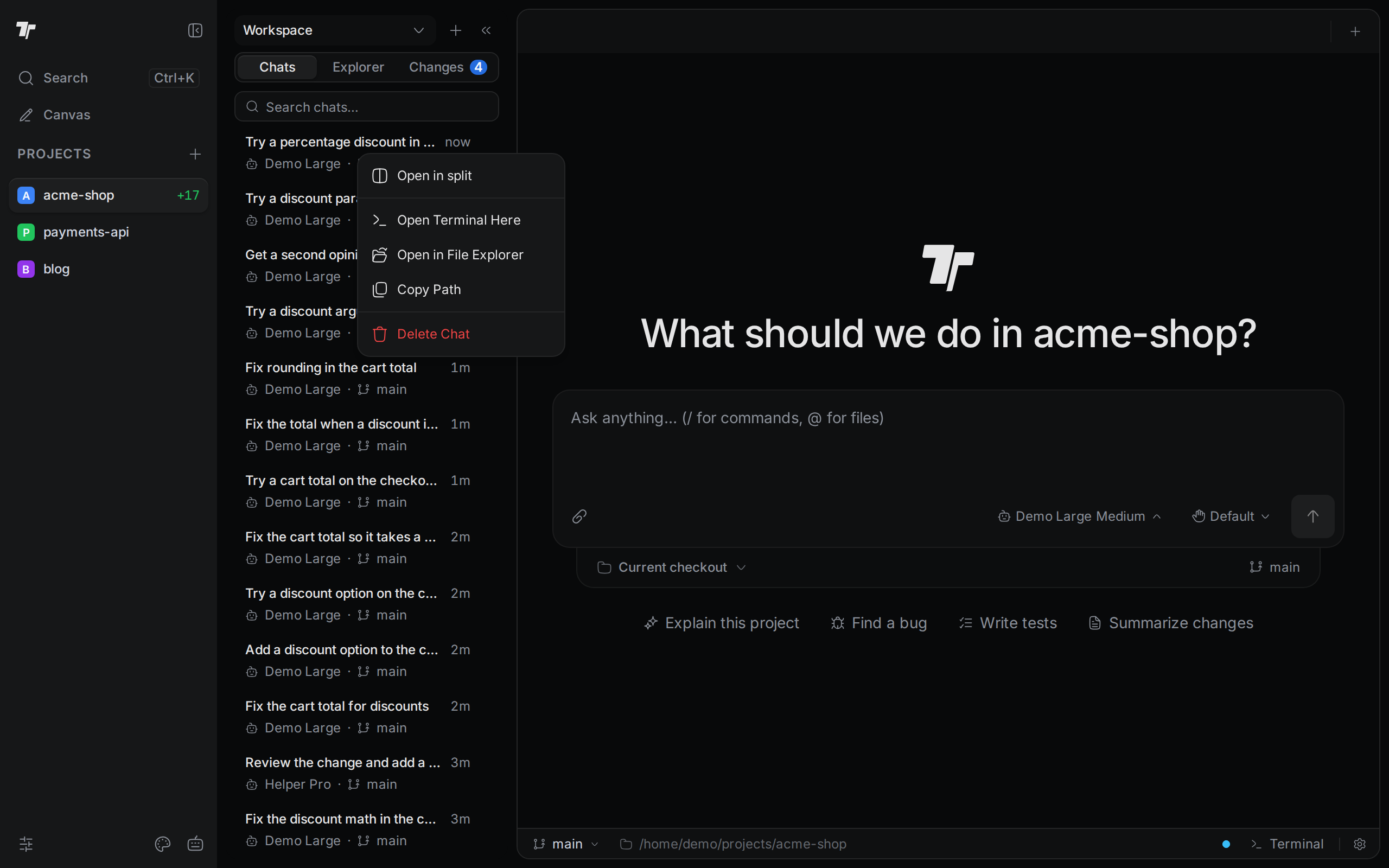
Right-click a chat under a project in the sidebar and choose Open in split. Quick chats and older chats do not have this item. The chat opens in a new pane to the right of the active pane, so you can watch two chats at once. You can also drag a chat from the sidebar onto a pane. Both work only for chats of the open project. A chat of another project does not drag, and Open in split shows "That chat belongs to another project." Click the chat to switch to its project first.
Open in split is off when the chat is already the only tab in the active pane.
Open the chat's folder
Each chat works in a folder, which is your project folder or a worktree. Right-click a chat in the sidebar, or hover over it and click the … button (More actions). The menu has:
- Open terminal here. Opens a terminal in that folder. Quick chats and older chats do not have this item.
- Open in file explorer. Shows the folder in your system's file manager. In a browser, Troupe copies the path instead.
- Copy path. Copies the folder path.
Let an agent read another chat
To give an agent the history of an earlier chat, even one from another project, copy the chat's reference and paste it into your message.
- Right-click the chat in the sidebar and choose Copy chat reference.
- Paste it into the chat where you want the agent to read it.
The reference is a few lines of plain text: the chat's title, its chat ID, its project and folder, and a hint to read it with the read_chat tool. Every agent in Troupe has that tool. It reads the chat as plain text, oldest message first, a page at a time. If the chat switched agents, the agent reads the whole conversation. For each tool call, the agent sees only its kind, the files it changed and its status, not its output.
To copy only the ID, choose Copy chat ID instead. On a phone, long-press a chat in Recents and tap Copy chat reference.
Let an agent start worker chats
An agent can hand parts of a task to new chats with the start_chat tool. Each new chat works in the same project and folder. When the agent runs on one of your Claude accounts and automatic account switching is on, Troupe starts each new chat on the signed-in account with the most room, so parallel work does not use up one account. With switching off, the new chats use the project's account. The new chats appear in the sidebar as soon as they start. Hover over one to see which chat started it, for example "Started by Fix the cart". On a phone and in the command palette, the row says the same. Open one to watch it or talk to it.
The agent that started them lists them with list_started_chats, follows them with read_chat, and sends more work with send_to_chat. A chat started this way cannot start chats of its own, and one chat can have six running at a time.
To have another agent, such as Codex, do part of the task inside this chat instead, see Let an agent start other agents.
Delete a chat
- Right-click the chat in the sidebar and choose Delete chat.
- Click Delete to confirm.
Deleting a chat removes it and its history, and closes its tab. For a chat that switched agents, this deletes the whole conversation, with every agent's part. You cannot undo it. For a chat in a project, the files the agent changed stay as they are. Deleting a quick chat also deletes the files in its folder, so save the ones you want to keep first.
Restart a chat's agent
After you change an agent's settings, such as its MCP servers or skills, a running chat still uses the old ones. To apply them, right-click the chat's tab or its row in the sidebar and choose Reload this chat. Troupe restarts the agent for this chat and keeps the conversation. It does not send your last message again.
When background agents or commands of the chat are still running, Troupe asks you to confirm the reload, because the reload stops them.
Reload this chat is off while the agent is working, waiting for you, or has queued messages. It is also off for a stopped chat and for agents that cannot reload a conversation. The Connectors menu under the message box has the same Reload this chat item when the chat still uses the old MCP servers. See MCP servers.
Link to a chat
When a chat is open, the browser's address bar holds a link to it that ends in #/c/ and the chat's id. Bookmark the link, or open it in another tab, to go straight to that chat. The link opens the chat in its own project, even if a different project is active. If you reload the page, the same chat opens again.